
Creating a website has become easier than ever in 2026. With tools like WordPress and Elementor, even beginners with no coding knowledge can build professional-looking websites for businesses, portfolios, blogs, or personal brands.
If you are planning to build your first website, this beginner-friendly guide will help you create simple Website using WordPress and Elementor.
Why Choose WordPress and Elementor?
WordPress powers millions of websites worldwide because it is flexible, beginner-friendly, and highly customizable. Elementor makes website design even easier by allowing users to create pages using drag-and-drop editing.
Benefits of Using WordPress and Elementor
- No coding required
- Beginner-friendly interface
- Professional website designs
- SEO-friendly structure
- Mobile responsive layouts
- Thousands of plugins and templates
- Easy customization
This combination is ideal for freelancers, startups, small businesses, bloggers, and creators.
Step 1: Choose a Domain Name and Hosting
Before creating a website, you need:
- A domain name
- A hosting provider
What is a Domain Name?
A domain name is your website address.
Example:
- yourwebsite.com
- yourbrand.in
What is Hosting?
Hosting stores your website files and makes your website accessible online.
Popular Hosting Providers
Choose a hosting plan that includes:
- Free SSL certificate
- Good speed
- WordPress support
- Daily backups
Step 2: Install WordPress
Most hosting providers offer one-click WordPress installation.
How to Install WordPress
- Login to your hosting dashboard
- Open the “WordPress” section
- Click “Install WordPress”
- Enter:
- Website name
- Username
- Password
- Complete installation
After installation, you can access your dashboard using:
yourwebsite.com/wp-adminStep 3: Understand the WordPress Dashboard
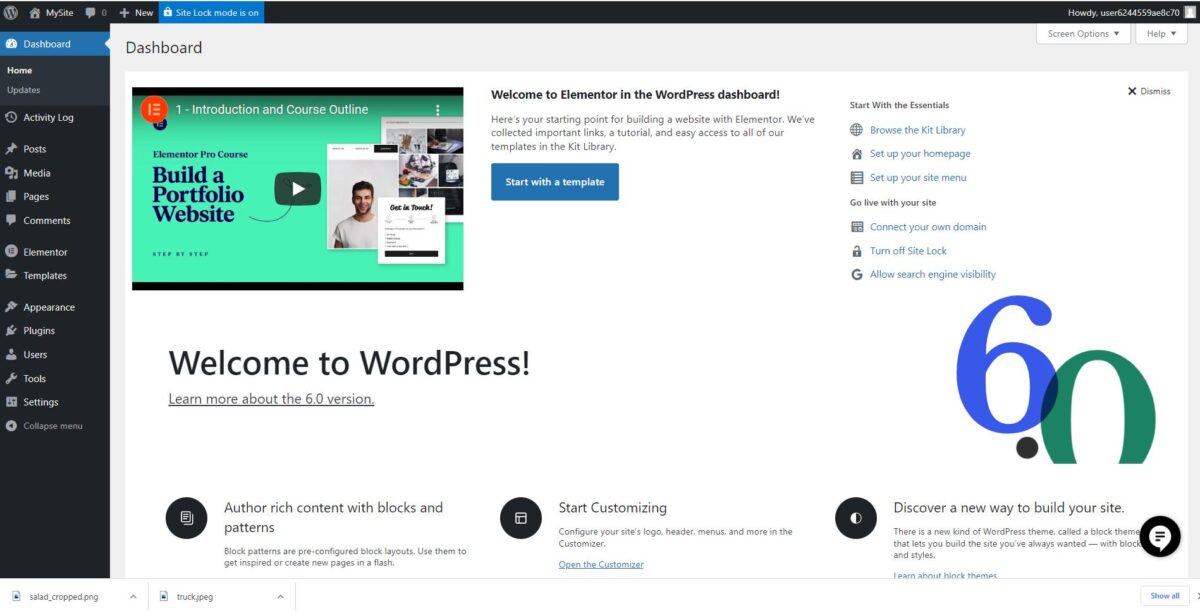
The WordPress dashboard is your website control panel.
Important Sections
- Posts → Blog articles
- Pages → Website pages
- Appearance → Themes and customization
- Plugins → Add extra features
- Media → Images and videos
- Settings → Website configuration
Spend some time exploring the dashboard before designing your site.
Step 4: Install a WordPress Theme
A theme controls the overall appearance of your website.
Recommended Beginner Themes
How to Install a Theme
- Go to:
Appearance → Themes - Click:
Add New Theme - Search for:
“Astra” or “Hello Elementor” - Click:
Install → Activate
Step 5: Install Elementor
Elementor is a drag-and-drop page builder that helps you design pages visually.
How to Install Elementor
- Go to:
Plugins → Add New - Search:
“Elementor” - Click:
Install - Click:
Activate
You can now build pages visually without coding.
Step 6: Create Essential Website Pages
Every basic website should include:
How to Create a Page
- Go to:
Pages → Add New - Enter page title
- Click:
Edit with Elementor
Step 7: Design Your Homepage with Elementor
The homepage is the first impression of your website.
Basic Homepage Sections
- Hero section
- About section
- Services section
- Testimonials
- Contact section
Elementor Widgets You Will Use
- Heading
- Text Editor
- Image
- Button
- Icon Box
- Spacer
Simply drag widgets from the left panel into the page.
Step 8: Customize Fonts and Colors
Consistent branding improves website appearance.
Recommended Design Tips
- Use 2 fonts maximum
- Maintain consistent colors
- Keep enough spacing
- Avoid cluttered layouts
Good Beginner Font Choices
- Poppins
- Roboto
- Open Sans
Step 9: Make the Website Mobile Responsive
Most visitors browse websites on mobile devices.
How to Check Mobile View in Elementor
- Click the responsive icon at the bottom
- Switch between:
- Desktop
- Tablet
- Mobile
Adjust:
- Font sizes
- Spacing
- Alignment
for better mobile experience.
Step 10: Add a Contact Form
A contact form helps visitors connect with you.
Popular Contact Form Plugins
Basic Contact Form Fields
- Name
- Phone Number
- Message
Embed the form into your Contact page using Elementor.
Step 11: Optimize Your Website for SEO

SEO helps your website rank on Google.
Install an SEO Plugin
Recommended:
Basic SEO Tips
- Use keywords naturally
- Add proper headings
- Optimize images
- Write meta descriptions
- Use internal links
SEO is important for increasing organic traffic.
Step 12: Improve Website Speed
A slow website can affect user experience and rankings.
Speed Optimization Tips
- Compress images
- Use lightweight themes
- Avoid too many plugins
- Enable caching
Recommended Cache Plugins
Step 13: Publish Your Website
Before publishing:
- Check spelling and grammar
- Test all buttons and links
- Verify mobile responsiveness
- Optimize images
- Preview pages
Once ready:
- Click:
Publish - Visit your website live
Congratulations! Your website is now online.
Common Beginner Mistakes to Avoid
Avoid These Mistakes
- Using too many plugins
- Ignoring mobile optimization
- Uploading large images
- Poor color combinations
- Not setting up SEO
- Cluttered homepage designs
Keeping your website clean and simple creates a better user experience.
Final Thoughts
Building a simple website using WordPress and Elementor is one of the best ways for beginners to start online in 2026. With drag-and-drop tools and beginner-friendly themes, anyone can create a professional website without coding knowledge.
Start with a clean design, focus on user experience, optimize your website for SEO, and keep improving your content regularly. Over time, your website can become a powerful tool for branding, marketing, and business growth.